How to Download, Install, and Log In to TikTok LIVE Studio
2026-03-07
How to Download, Install, and Log In to TikTok LIVE Studio
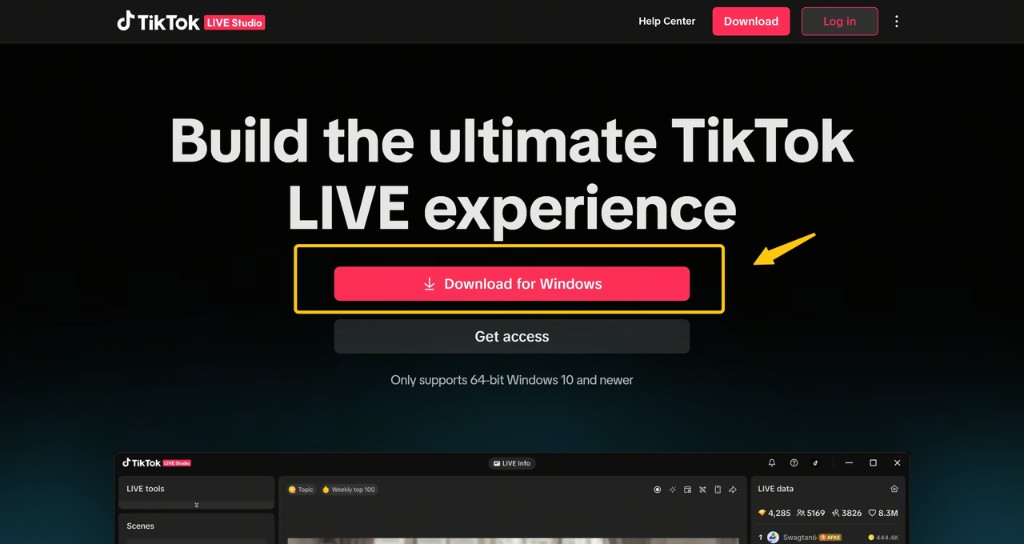
If you are ready to stream from desktop, the first step is straightforward: download TikTok LIVE Studio from TikTok's official website, install it on your computer, and sign in with the account you plan to use for LIVE.
Getting started is fairly simple. LIVE Studio is available for both Windows and macOS, and the official download URL is tiktok.com/studio/download.
Before You Start
Before you download anything, make sure two basics are true:
- you are using a supported desktop device
- you are signing in with the TikTok account you want to stream from
LIVE Studio is available on both Windows and macOS. That means you do not need to use unofficial installers or third-party packaging just to get started.
Step 1: Go to the Official Download Page
There is one official download location:
https://www.tiktok.com/studio/download
Use the official page rather than third-party sites. This matters for security, version accuracy, and access to the latest product updates.
Why this is important:
- you reduce the chance of downloading an outdated file
- you stay aligned with TikTok's current desktop release
- you avoid unnecessary security risk
Step 2: Choose the Correct Version
On the download page, choose the version that matches your operating system:
- Windows
- macOS
LIVE Studio supports both platforms. If you are setting this up for the first time, this is also a good moment to confirm that your device meets the recommended hardware level for your intended streaming style.
If you only plan to do a simple talking-head stream, a minimum or intermediate setup may be enough. If you want to use more effects, co-host, multi-guest, or heavier production workflows, you should check whether your machine is closer to the recommended or advanced range.
Step 3: Install the Application
After downloading the installer:
- open the downloaded file
- follow the installation steps for your operating system
- allow the app to finish setup completely before launching
The installation flow is usually straightforward, but it still helps to be deliberate:
- make sure the installer finishes before opening the app
- avoid interrupting the setup midway
- launch the app only after installation is fully complete
In practical terms, the installer itself is usually the easy part. What matters more is what happens right after launch: signing in with the correct TikTok account and checking whether that account already has LIVE access.
Step 4: Open LIVE Studio and Sign In
Once the app is installed, launch LIVE Studio and sign in with your TikTok account.
This step matters because LIVE Studio is not a generic encoder. It is TikTok's own desktop streaming product, so account-level access, feature eligibility, and LIVE status all depend on the TikTok profile you use.
Use the account that:
- already has LIVE history if applicable
- is intended for your future broadcasts
- matches your creator or brand identity
If you sign in with the wrong account, you may think the product has an issue when the real problem is account eligibility.
Step 5: Check Your LIVE Access Status
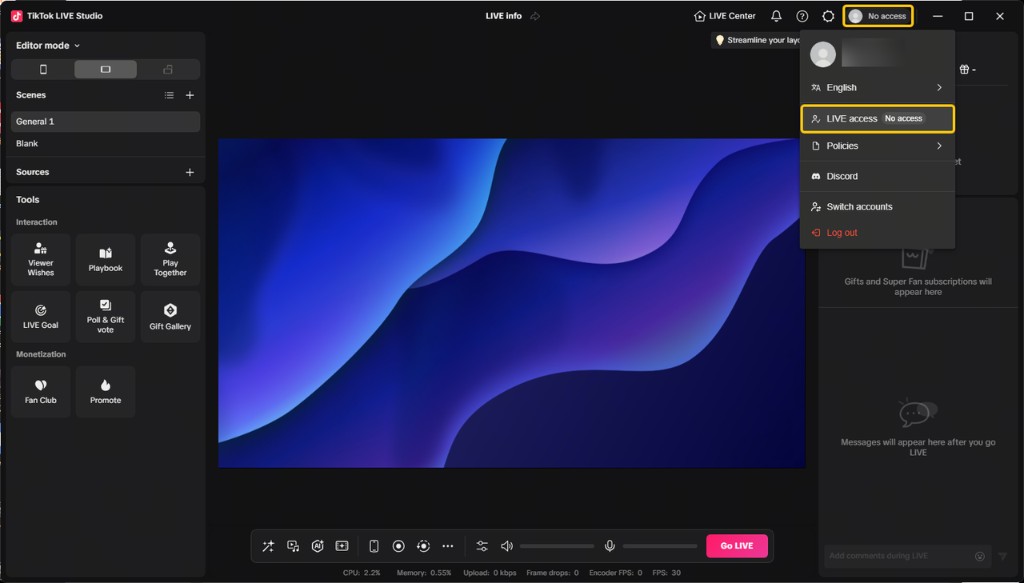
Active TikTok LIVE creators can open LIVE Studio and check their LIVE access status in the top-right corner. If eligible, they can click Your LIVE access to apply or continue.
This means installation and login are only part of the onboarding flow. You should verify access immediately after signing in so you know whether you can go live right away or need to apply first.
Default Access Requirements
Before you assume access is missing because of a software problem, check the basic requirements first. The requirements vary by country or region and are subject to change without notice, but the baseline conditions described for LIVE Studio access are:
- your TikTok account was created at least 30 days ago
- you have gone LIVE at least once in the last 180 days
- each LIVE lasted at least 25 minutes
- you have at least 500 followers
- your LIVE access has not been suspended in the last 30 days
- there is no current access suspension or revocation
What the Access Status Screen Can Look Like
When access is available or partially unlocked, you may see an access status screen inside LIVE Studio. For example, some creators may see a 14-day access stage before reaching a longer access window.
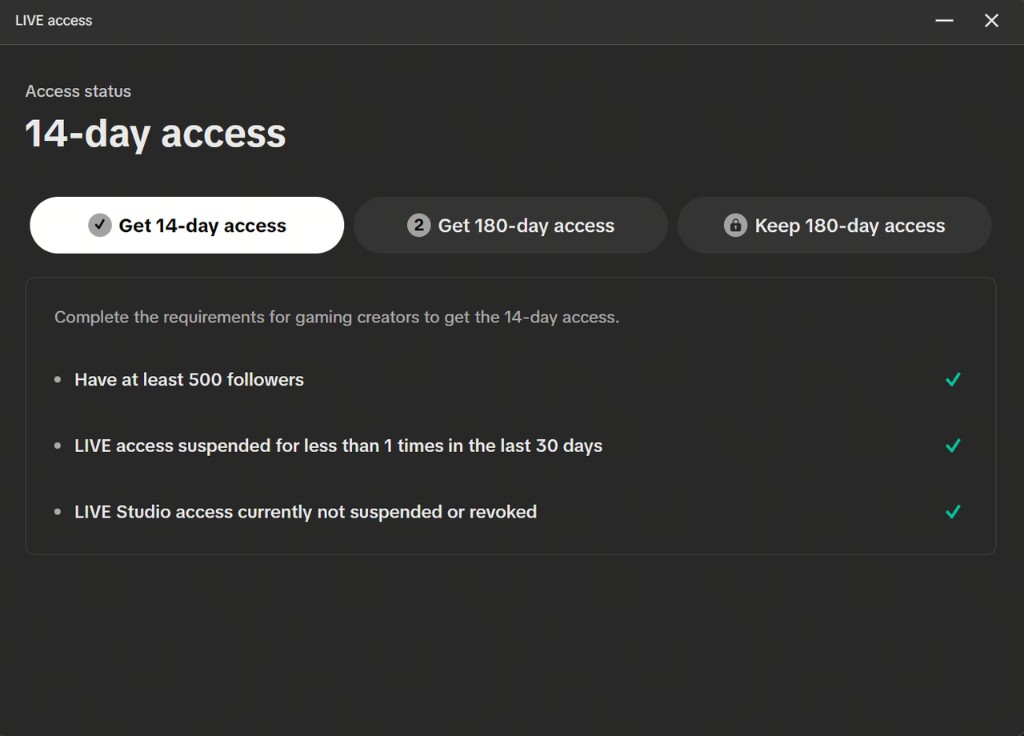
At this stage, ask:
- Can I see my LIVE access status?
- Does the account appear eligible?
- Do I need to submit an application?
What If You Are a Creator From Another Platform?
There is also a common case worth calling out: users who are active streamers elsewhere but not yet active TikTok LIVE creators.
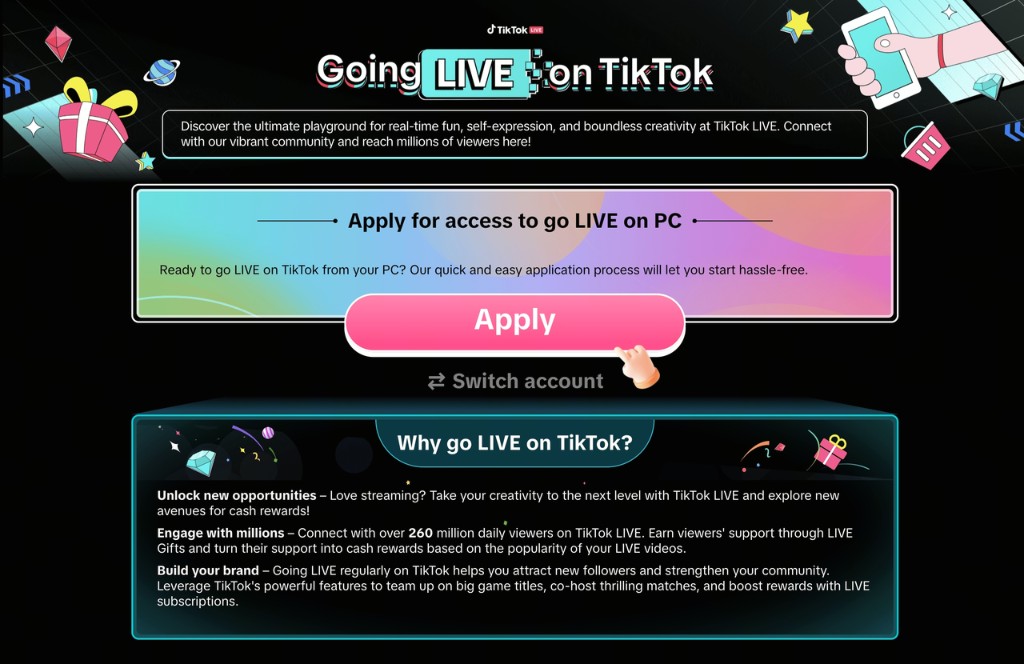
If you are not already an active creator on TikTok, LIVE Studio may redirect you to an application page after you click Your LIVE access. From there, you can submit an application form.
That is useful because it shows installation is not blocked only to long-time TikTok LIVE users. However, approval is still governed by TikTok's access conditions and regional rules.
If You Are an Active LIVE Creator on TikTok
Open LIVE Studio and check the top-right corner of the interface. From there, click Your LIVE access to review your status or continue the access flow.
If You Are a Streamer on Other Platforms
If you are not yet an active creator on TikTok, clicking Your LIVE access may send you to an application page where you can apply for LIVE access on PC.
Common Mistakes to Avoid
Downloading from the wrong source
Always use the official download page. Avoid mirrors, reposted installers, or random tutorial links.
Logging in with the wrong TikTok account
If you use a personal account by accident when your creator account has the needed history, your access result may look wrong.
Treating install success as access success
Installing the software does not automatically mean you are eligible to stream. Check access status right after login.
Ignoring platform support and system reality
Even though the app is available on Windows and macOS, your actual performance still depends on your hardware level and intended stream complexity.
What to Do Right After Installation
Once LIVE Studio is installed and you are logged in, your next steps should be:
- verify LIVE access by checking Your LIVE access inside the app
- review your computer against the system requirements before planning heavier streams
- plan your camera, lighting, and microphone setup if you want better production quality
- learn the main interface before your first stream so the product feels predictable during setup
If you want to continue in the most practical order, the next topics to read are:
- How to Get Access to TikTok LIVE Studio
- TikTok LIVE Studio System Requirements Explained
- TikTok LIVE Studio Interface and Control Panel Explained
That sequence is more effective than jumping straight into a live session without checking readiness.
Summary
To download and install TikTok LIVE Studio, go to the official page at tiktok.com/studio/download, choose the correct Windows or macOS version, complete installation, and sign in with the TikTok account you plan to stream from.
The most important follow-up step is checking your LIVE access status inside the app. Installation gets you into the product, but account eligibility determines whether you can actually go live. If access is not immediately available, review the default requirements and follow the in-product application path that matches your creator situation.